


Libgdx with Android For Game Dev
Game Dev Tutorial IIII : Add Text to Game Screen
Game Dev - Prev - Tutorial | Next: Tutorial IIIII: Image Fonts
To see all Game Dev tutorials goto our Blog
This tutorial will continue on from our previous tutorial. We are going to move the 'Badlogic' image to the top of the game screen, and then add some text to our game screen. We don't need to create another game app, we can simply update the code from our previous tutorial, then run our code again to compile the game screen app and show the updated changes.
From our previous tutorial we learned how to position our image on the game screen with the width and height parameters. Now in this tutorial we simply want to move our Badlogic image to the top of the game screen, and then add text around the middle of the game screen.
To change the height position of our image, we know we must update/change the height or Y parameter of our badlogic texture(the image). So we change it to 940, which moves it to the top of screen position as shown in this next image. And, the text on the screen is scaled at 2.2f
[font.setScale(2.2f)]

Next, we want to include our 'Create Method', and in this we again code the texture, font, and spritebatch as shown in this image Also, in this Create method, we will add the font color for our text, with the font.setColor property. The font.setScale(2.2f), is how we set its' size on the screen.
Of note; in code for a mobile game app, the text is known as 'font'(bitmapfont), and an image is known as a 'texture'. And, 'Gdx.files.internal' is where the images are put which is in the 'Assets' folder in your app file hierachy(at 'AppProjects/MyGame/gdx-game-android/assets').

The next method we include in our code is the Render Method; here we code the y value for our texture's position on the game screen. We simply add a number for the y parameter's value. We used 940, and this moved our image to the top of the game screen as shown in the shot of the game screen.
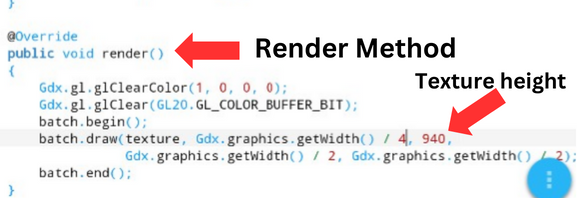
Also, in our Render Method, we add the color we want for the game screen. From our previous tutorial we learned how to change the screen color.
Lastly, in our Render Method , we draw our 'Texture', and 'Font' for the game screen, and we can add their size and position, with the Gdx.graphics.getWidth and Gdx.graphics.getHeight methods. Looking at this image (or the code in the Example Code section this page), you see the width and height for the text we added(Bad Logic, Game Dev). Both lines of text begin at the same point, 40f, as coded, however, the height of each line is different, 55f,65f. This is how we add space for the words, so they line up even, but they are each on a separate line.

In this next screenshot of the gamescreen, we have set the scale of the font to 3.3f, and, for this size screen it still looks good. This screen is a cell phone screen with a 6.2 screen size, with resolution of 720x1500.
[font.setScale(3.3f)]

In this next screenshot, we set the font scale to 4.4f, and you see the font looks a little smudgy, not as nice as the first two, 2.2f, and 3.3f. Unlike a regular Android app, adding and setting fonts in game screens is a little more complicated. We shall learn more about fonts as we continue our tutorials.
[font.setScale(4.4f)]


In this tutorial, we learned of one method to add fonts to your game screen with the built in default game font arial. And, we coded the height position of our badlogic image. And, lastly we coded the Gdx.graphics.getWidth, Gdx.graphics.getHeight; to position our font text on our game screen.
Game Dev - Prev - Tutorial | Next: Tutorial IIIII: Image Fonts
To see all Game Dev tutorials goto our Blog
This tutorial will continue on from our previous tutorial. We are going to move the 'Badlogic' image to the top of the game screen, and then add some text to our game screen. We don't need to create another game app, we can simply update the code from our previous tutorial, then run our code again to compile the game screen app and show the updated changes.
From our previous tutorial we learned how to position our image on the game screen with the width and height parameters. Now in this tutorial we simply want to move our Badlogic image to the top of the game screen, and then add text around the middle of the game screen.
To change the height position of our image, we know we must update/change the height or Y parameter of our badlogic texture(the image). So we change it to 940, which moves it to the top of screen position as shown in this next image. And, the text on the screen is scaled at 2.2f
[font.setScale(2.2f)]
Coding a Bitmap Font
Now we can look at our code to see how we code this. First, we must declare and add our variables for what we want to add to our game screen. This is shown in this next image. We want to add some text, so we must add a font variable, and we want to have our image, so we must include our texture variable. And, important, we need our 'Spritebatch' included because this is how we draw the font and the texture(the image) to the game screen.Next, we want to include our 'Create Method', and in this we again code the texture, font, and spritebatch as shown in this image Also, in this Create method, we will add the font color for our text, with the font.setColor property. The font.setScale(2.2f), is how we set its' size on the screen.
Of note; in code for a mobile game app, the text is known as 'font'(bitmapfont), and an image is known as a 'texture'. And, 'Gdx.files.internal' is where the images are put which is in the 'Assets' folder in your app file hierachy(at 'AppProjects/MyGame/gdx-game-android/assets').
The next method we include in our code is the Render Method; here we code the y value for our texture's position on the game screen. We simply add a number for the y parameter's value. We used 940, and this moved our image to the top of the game screen as shown in the shot of the game screen.
Also, in our Render Method, we add the color we want for the game screen. From our previous tutorial we learned how to change the screen color.
Lastly, in our Render Method , we draw our 'Texture', and 'Font' for the game screen, and we can add their size and position, with the Gdx.graphics.getWidth and Gdx.graphics.getHeight methods. Looking at this image (or the code in the Example Code section this page), you see the width and height for the text we added(Bad Logic, Game Dev). Both lines of text begin at the same point, 40f, as coded, however, the height of each line is different, 55f,65f. This is how we add space for the words, so they line up even, but they are each on a separate line.
Setting the Font Scale
The first screenshot on this page the text font is set at 2.2f, and the text is small but looks good, meaning there are no shadows, or smudgy edges.In this next screenshot of the gamescreen, we have set the scale of the font to 3.3f, and, for this size screen it still looks good. This screen is a cell phone screen with a 6.2 screen size, with resolution of 720x1500.
[font.setScale(3.3f)]
In this next screenshot, we set the font scale to 4.4f, and you see the font looks a little smudgy, not as nice as the first two, 2.2f, and 3.3f. Unlike a regular Android app, adding and setting fonts in game screens is a little more complicated. We shall learn more about fonts as we continue our tutorials.
[font.setScale(4.4f)]
Coding Game States
As discussed in our previous tutorial, it is a good idea to get in the practice of adding your game states, and disposing of game assets when they have completed their draw. This next image shows the game states and disposal method.
In Summary
In game dev, the default font is arial with libgdx. So, in this tutorial, the font we added was the arial default font. We coded this on a Samsung Galaxy for Android cell phone with a screen size of 6.2. This font works well in some situations, but not all, because it is really based on screen size and text size required. A smaller size screen that is fixed for game play would benefit from this font as it would not need to change to match a different device size. However, it would not work with a game where you wanted to support different screen sizes especially larger tablets and the like. In those situations, you could add images as your game fonts, and they work rather well, because they can usually auto scale based on screen size much like a non game Android app.In this tutorial, we learned of one method to add fonts to your game screen with the built in default game font arial. And, we coded the height position of our badlogic image. And, lastly we coded the Gdx.graphics.getWidth, Gdx.graphics.getHeight; to position our font text on our game screen.
EXAMPLE CODE - Code For This Tutorial.
JUST copy the changes in the code for this tutorial from the Example Code in this section.
JUST copy the changes in the code for this tutorial from the Example Code in this section.