
Next Tutorial
Android View Animation
Prev Page
View All Tutorials
This is the App Photo - Frame Animation Buttons
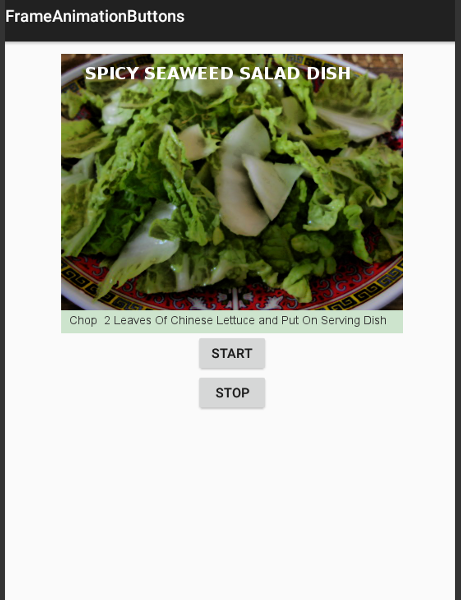
For this Tutorial, you can download the App
Click Here to Download
Coding Our Images
For our app, we are adding five png images, sized at 421 x 316 pixels. We added a border to each image using GIMP. Then we added text to the border on each image. We saved them as png format because that is the recommended file format to use for android images.
...asiandish2.png... and so forth. We also added to our res/drawable the frame_animation_list.xml This file has the required code for the animation images which are used for the frame animations.
Shape Drawables
If you want, you can use the android class Shape Drawables, to create drawable shapes to use in your frame animation. You can create shapes like rectangles, rings, circles; make them whatever color you like, then add them to the drawable folder of your app project in the same way you add your images.
In our previous tutorials you learned how to create shape drawables.
Material Design Theme
For each template android/gradle/java/xml app you create:
By default;
The res/values-v21 styles.xml file has the code for the material design theme name: Theme Material Light; for devices using android version 5.0, Api 21 or latest.
The res/values styles.xml file has the code for the theme name: Theme Holo Light, which is for devices that are pre material design platforms; ie less than android version 5.0 Api 21.
For this app tutorial, we want to use the
Theme Material Light Dark Action Bar
This theme has a light colored view with a dark colored action bar. The action bar is at the top of the app view, where you can see the app name.
The code for this is shown in this image.

We need to change the code to read Theme.Material.Light.DarkActionBar, in our styles.xml file located at res/values-v21 of the app project.
For devices using android 5.0 Api 21, or later versions, they will now see the Theme.Material.Light.DarkActionBar.
For users of devices that are pre or before android 5.0 Api 21, they will have the Theme.Holo.Light as their theme.
You can also change the theme holo light, to a Light theme view and a dark color action bar. To do so, simply change the code at the file styles.xml located at res/values in your app project to read: Theme.Holo.Light.DarkActionBar
You can copy paste the code for these themes at the Example Code section on this page.
Additional Reading at Android Developer Website:
Android Frame Animations
Animation Drawables
Create New Project;
Then, choose
New Android App(gradle, android Java/xml)
or
Hello World App Java/xml
if your using the original version of AIDE
You can name your app, use;
Frame Animation Buttons for the App Name and,
for the package name(next line) use:
com.aac.animationButtons
Layout 1 layout file, main.xml; this page has the code for our FrameAnimation layout; located at res/layout/main.xml, already created, just replace the code on this page with the code from our Example Code section and save the page.
frame_animation_list.xml; this file has the code for the animation_list required for the animation. This page needs to be created at at res/drawable folder of your app project. You can name the page as you like.
In this xml file you just code the images or drawables required for the animation, and in the order you want them displayed. Then add the android:duration attribute with a integer value. This determines the speed of each frame drawable. The larger the number the slower the frame animates.
Copy and paste the code from our Example Code section, save the page.
frame_animation_list.xml

Images
res/drawable folder; at the drawable folder we add all the images we are using for this app:
asiandish1.png
asiandish2.png
asiandish3.png
asiandish4.png
asiandish5.png
You can download these at the Example Code section, then copy/paste them into the drawable folder of the app project, using your device File Manager.
Java
1 java class page; MainActivity.java; located at app/src/java/MainActivity.java. This page has the code that will initiate the animation and the onclick method for the buttons.
Looking at this image of the code, you can see the findViewByID code for the Buttons that we coded with the id of start, and stop from our Layout elements. In this code we attach those ID names from our layout file to the onClickListener code to implement the Button Click method.
You also see the code for oneShot, with 'true' or 'false' boolean values. If you choose false the animation continues to cycle after its first cycle; however if you choose true, then it stops after its first cycle.

Each code class you code has a corresponding import statements that have to be coded in your apps java file such as MainActivity.java.
Each android 'template app' we create codes the common required 'import' for us, like:
import android.app;
import android.os;
also common is
import android.view.view;
These are coded at the top of the java class page.
When we add code classes to our java code as we have done for this app; then we need to add the import for that in our java code page as it is shown in this image.
This code contains the code for the imports for the MainActivity.java file
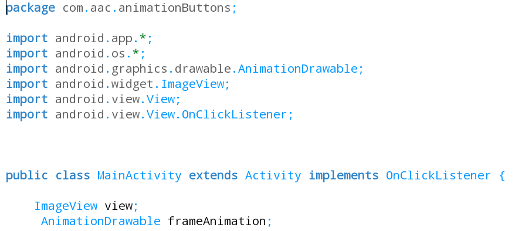
The import code for an ImageView is:
import android.widget.ImageView;
and if we add a onClickListener method to our apps code which we did for this app, then we add the 'import' code for the onClickListener as this:
import android.view.View.OnClickListener;.
We also added a 'import' for our AnimationDrawable code class, which you can see in the image as well.
When you code with AIDE you will no doubt from time to time get error messages. The import code is a good place to look for errors, because you may have not coded a certain required import for the code classes or widgets your implementing.
You can copy paste the code from the Example Code section to replace the code on page now and save the page.
Strings 1 strings.xml file; This file has the strings that contains the app_name text.
Build Gradle, this page has the code for the SDK min and target versions and our support libraries code if we need to add any to our app. The support libraries code is added at the 'dependencies' section in the build.gradle file, and the Sdk versions are added at the 'defaultConfig' section in the build.gradle file.
This file has been created for us with SDK version min 14, and target version 21; and is suitable for this app, we don't have to edit those.
And, for this app we don't need to add any support libraries, so we do not need to edit this page.
For this app, the build.gradle file is located at; AppProjects/FrameAnimationButtons/app/.
Manifest
The androidmanifest.xml file is where you can code your 'app theme' name, code your 'intent filters', and add other necessary codes if your app requires them. You can also code your SDK min and target versions here that your app needs; but since they are already coded in the build.gradle file they do not need to be coded here.
Coding For Compatibility
The Material Design platform was introduced in android 5.01 which is api 21, for coding purposes SDK version 21. Each android platform build version has a API assigned to it.
View the Android Platform Versions and API Levels here.
You can find the android platform version of your android device at: Settings, AboutPhone.
And, for some apps we develop, we have to add 'support libraries'. To learn about setting your SDK versions, and adding support libraries (dependencies), goto
Tutorial 1 - AndroidManifest and Build Gradle
Android View Animation
Prev Page
View All Tutorials
Android Tutorial, Frame Animation with Buttons
This is the App Photo - Frame Animation Buttons
For this Tutorial, you can download the App
Click Here to Download
How To - Frame Animation
In our previous tutorial you learned how to code an app for a Simple Frame Animation. In this tutorial, we will code a frame animation with a Stop and Start button to control the animation. This is easy to do. We just have to add code to our java class file to implement the onClickListener method for our buttons, and add our two button elements to our layout file.Animation-List
To code the animation, the animation-list, element is used; where each frame(the drawable name) is coded in a item attribute. The file is named as you like with the xml extension, and also put into the res/drawable folder of your app project along with your own images or drawables you created. Android prefers that you use png or jpg if using images for your app project.Coding Our Images
For our app, we are adding five png images, sized at 421 x 316 pixels. We added a border to each image using GIMP. Then we added text to the border on each image. We saved them as png format because that is the recommended file format to use for android images.
GIMP For Image Creation and Editing
GIMP is a free open source creating and editing editor for graphics. With GIMP you can make images, add borders, text, and many special effect filters can be added as well.Adding Our Images To Drawable Folder
We added them to our res/drawable folder. We named them in sequence of how we want to frames to animate; asiandish1.png...asiandish2.png... and so forth. We also added to our res/drawable the frame_animation_list.xml This file has the required code for the animation images which are used for the frame animations.
Shape Drawables
If you want, you can use the android class Shape Drawables, to create drawable shapes to use in your frame animation. You can create shapes like rectangles, rings, circles; make them whatever color you like, then add them to the drawable folder of your app project in the same way you add your images.
In our previous tutorials you learned how to create shape drawables.
Material Design Theme
For each template android/gradle/java/xml app you create:
By default;
The res/values-v21 styles.xml file has the code for the material design theme name: Theme Material Light; for devices using android version 5.0, Api 21 or latest.
The res/values styles.xml file has the code for the theme name: Theme Holo Light, which is for devices that are pre material design platforms; ie less than android version 5.0 Api 21.
For this app tutorial, we want to use the
Theme Material Light Dark Action Bar
This theme has a light colored view with a dark colored action bar. The action bar is at the top of the app view, where you can see the app name.
The code for this is shown in this image.
We need to change the code to read Theme.Material.Light.DarkActionBar, in our styles.xml file located at res/values-v21 of the app project.
For devices using android 5.0 Api 21, or later versions, they will now see the Theme.Material.Light.DarkActionBar.
For users of devices that are pre or before android 5.0 Api 21, they will have the Theme.Holo.Light as their theme.
You can also change the theme holo light, to a Light theme view and a dark color action bar. To do so, simply change the code at the file styles.xml located at res/values in your app project to read: Theme.Holo.Light.DarkActionBar
You can copy paste the code for these themes at the Example Code section on this page.
Additional Reading at Android Developer Website:
Android Frame Animations
Animation Drawables
Creating - Naming Your App Using AIDE
When creating your app,(from left menu) choose:Create New Project;
Then, choose
New Android App(gradle, android Java/xml)
or
Hello World App Java/xml
if your using the original version of AIDE
You can name your app, use;
Frame Animation Buttons for the App Name and,
for the package name(next line) use:
com.aac.animationButtons
The Coded Pages
For this app you will use these coded pages:Layout 1 layout file, main.xml; this page has the code for our FrameAnimation layout; located at res/layout/main.xml, already created, just replace the code on this page with the code from our Example Code section and save the page.
frame_animation_list.xml; this file has the code for the animation_list required for the animation. This page needs to be created at at res/drawable folder of your app project. You can name the page as you like.
In this xml file you just code the images or drawables required for the animation, and in the order you want them displayed. Then add the android:duration attribute with a integer value. This determines the speed of each frame drawable. The larger the number the slower the frame animates.
Copy and paste the code from our Example Code section, save the page.
frame_animation_list.xml
Images
res/drawable folder; at the drawable folder we add all the images we are using for this app:
asiandish1.png
asiandish2.png
asiandish3.png
asiandish4.png
asiandish5.png
You can download these at the Example Code section, then copy/paste them into the drawable folder of the app project, using your device File Manager.
Java
1 java class page; MainActivity.java; located at app/src/java/MainActivity.java. This page has the code that will initiate the animation and the onclick method for the buttons.
Looking at this image of the code, you can see the findViewByID code for the Buttons that we coded with the id of start, and stop from our Layout elements. In this code we attach those ID names from our layout file to the onClickListener code to implement the Button Click method.
You also see the code for oneShot, with 'true' or 'false' boolean values. If you choose false the animation continues to cycle after its first cycle; however if you choose true, then it stops after its first cycle.
Each code class you code has a corresponding import statements that have to be coded in your apps java file such as MainActivity.java.
Each android 'template app' we create codes the common required 'import' for us, like:
import android.app;
import android.os;
also common is
import android.view.view;
These are coded at the top of the java class page.
When we add code classes to our java code as we have done for this app; then we need to add the import for that in our java code page as it is shown in this image.
This code contains the code for the imports for the MainActivity.java file
The import code for an ImageView is:
import android.widget.ImageView;
and if we add a onClickListener method to our apps code which we did for this app, then we add the 'import' code for the onClickListener as this:
import android.view.View.OnClickListener;.
We also added a 'import' for our AnimationDrawable code class, which you can see in the image as well.
When you code with AIDE you will no doubt from time to time get error messages. The import code is a good place to look for errors, because you may have not coded a certain required import for the code classes or widgets your implementing.
You can copy paste the code from the Example Code section to replace the code on page now and save the page.
Strings 1 strings.xml file; This file has the strings that contains the app_name text.
Build Gradle, this page has the code for the SDK min and target versions and our support libraries code if we need to add any to our app. The support libraries code is added at the 'dependencies' section in the build.gradle file, and the Sdk versions are added at the 'defaultConfig' section in the build.gradle file.
This file has been created for us with SDK version min 14, and target version 21; and is suitable for this app, we don't have to edit those.
And, for this app we don't need to add any support libraries, so we do not need to edit this page.
For this app, the build.gradle file is located at; AppProjects/FrameAnimationButtons/app/.
Manifest
The androidmanifest.xml file is where you can code your 'app theme' name, code your 'intent filters', and add other necessary codes if your app requires them. You can also code your SDK min and target versions here that your app needs; but since they are already coded in the build.gradle file they do not need to be coded here.
Coding For Compatibility
The Material Design platform was introduced in android 5.01 which is api 21, for coding purposes SDK version 21. Each android platform build version has a API assigned to it.
View the Android Platform Versions and API Levels here.
You can find the android platform version of your android device at: Settings, AboutPhone.
Summary
For most apps you build you will need to have the proper SDK min and target version coded in either the build.gradle file or the AndroidManifest.xml page. At this time, it is added at Build gradle for the 'template' apps we create.And, for some apps we develop, we have to add 'support libraries'. To learn about setting your SDK versions, and adding support libraries (dependencies), goto
Tutorial 1 - AndroidManifest and Build Gradle
EXAMPLE CODE - Code For This Tutorial
JUST copy the code for this tutorial App Name is 'FrameAnimationButtons' - located at AppProjects/FrameAnimationButtons in AIDE, open the AIDE app, then open App Projects, THEN select the 'FrameAnimationButtons' app from your files hierachy(left menu); then click on any file from the app, like strings.xml Make sure at top of page, the app name FrameAnimationButtons is there next to AppProjects like so: AppProjects/FrameAnimationButtons , then you know you have the proper App.
JUST copy the code for this tutorial App Name is 'FrameAnimationButtons' - located at AppProjects/FrameAnimationButtons in AIDE, open the AIDE app, then open App Projects, THEN select the 'FrameAnimationButtons' app from your files hierachy(left menu); then click on any file from the app, like strings.xml Make sure at top of page, the app name FrameAnimationButtons is there next to AppProjects like so: AppProjects/FrameAnimationButtons , then you know you have the proper App.
Once a file is in the editor, you can edit, save it, then RUN your APP, Install,
and Open your app.
Make sure you SAVED EACH PAGE,(or choose automatic saving in AIDE settings) before you RUN your code. SAVE, RUN, INSTALL, OPEN, your App. Once it has been
installed on your tablet, you can open it Simply by Clicking on the Android little green App Icon,with the wording 'FrameAnimationButtons' on your tablet. It will
be with your other installed apps.
If you make further changes to this App, you need to SAVE, RUN, UPDATE, INSTALL, then OPEN the app.
This free script provided by
JavaScript
Kit
AIDE for creating Android Apps on your tablet or cell phone(android).
Free and Paid.
GoTo Aide
ANDROID STUDIO - for creating Android Apps on your desktop computer.
Free to Install and Use
Learn more - Android Studio
The Java XML files we code(example codes) and the Android Apps we create in our Free Tutorials are compatible with Android Studio and AIDE. Just choose Java XML as your Programming Language.
You May Like:
Sushi Rolls Make Sushi at Home | Taste World Wines Flavours and Aromas