
New Tutorial 2022
Android Tutorial -
Button To Link(SmartLink) Example
Added September 2022
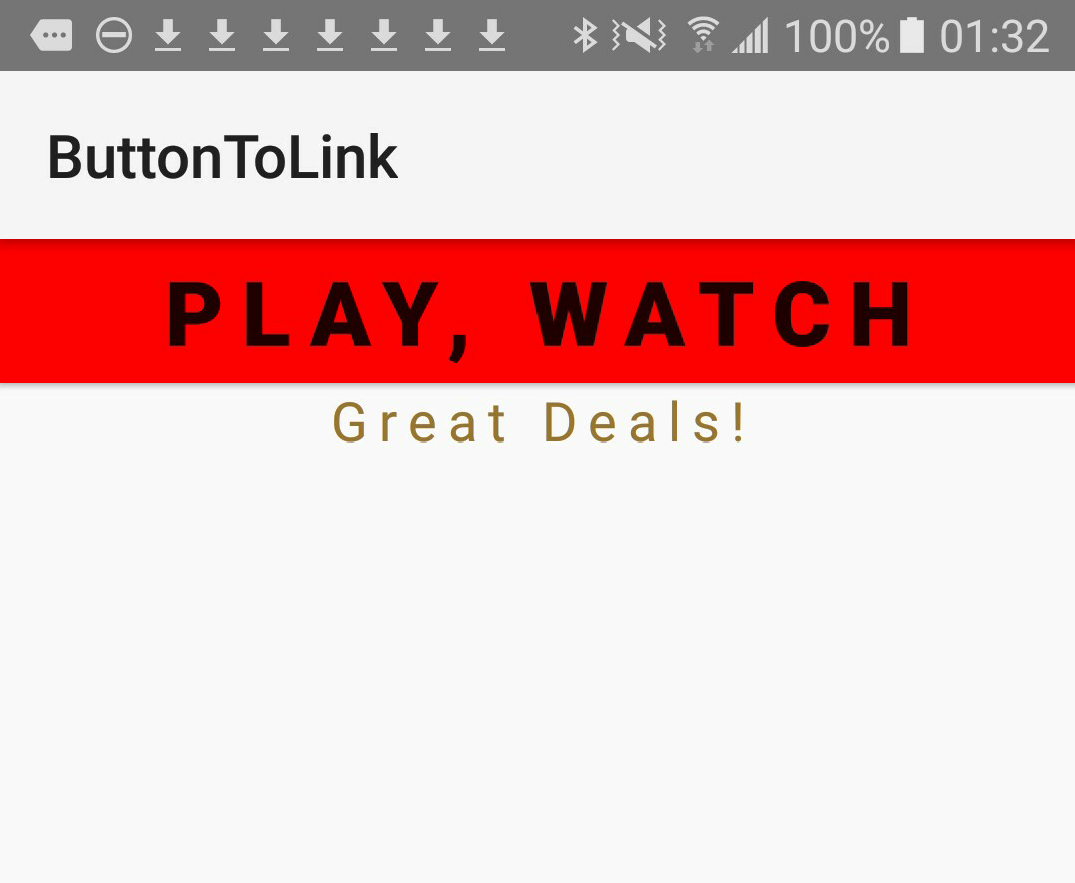
For this tutorial, we are going to learn how to code a button to web link that when clicked goes to a web address url. For the url you can use any web address you like, simply swap out the url in the java class code. Also, we are going to give our button a background color, and add text to it, with some text styling. We can position our button anywhere we like within the app screen display. For this app, we place it at the very top of the display, so it can be used as an advertising banner for a 'Smartlink'. When a user clicks on the banner, they are taken to whatever web url you have entered into your code.
SmartLinks For Publishers
Nowadays, there are lots of ad choices for publishers on their websites, social media, and in apps. Common ad types include banners, full page ads, delayed ads, video ads, popups ads, push notifications, and more recently 'smartlinks'.Smartlinks are just as the name indicates. They can determine a lot of things about a users demographic including country, device type, age, and so on. A smartlink is of itself just a plain ordinary link, which is why it is so easily placed just about anywhere a publisher might want to use it. And, because it can effectively utilize just about any type of traffic, it can help to monetize traffic that perhaps would not be otherwise.
Usually a publisher adds advertising to their app by adding a SDK integration, however using smartlinks can make the process of adding advertsing to your app a lot simpler. And, you have the option of switching out the graphics whenever you want, to whatever you like, as long as it complies with the advertisers' guidelines.
Many popular ad networks like offer these links for their publishers to add to websites, social media, and in your apps. You can simply add text to them as we have done in this tutorial, or you can also make your own creatives to use with the smartlinks.
For the text banner we make in this app, we can easily add the publisher link code to the coding, so that when a user clicks on the banner they are taken to the advertising landing page. And, if the user decides to buy or watch something that they are offered, you make a commission from that. Because you don't know exactly what they are being advertised, best to keep your banner or images to general words or phrases like Download, Watch, Play.
Dependencies and SDK Version Targets
For this app we are using the 'uri.parse' method in our java class code(MainActivity.java), which was introduced in earlier versions of the Android Platform, therefore we do not have to add any dependency code for this. As you know, any required dependency code is added to our 'buildgradle' file.Our SDK versions should reflect the newer versions of Android, that way we can target as many users as we can. For this app we use 16 for the min SDK version, and 28 - 31, for our target Sdk version. You can also change these in the 'buildgradle' file of our app.
I'll mention also the 'versionCode', and the 'versionName', also located in the buildgradle file. These are important once you start distributing your app to the app market stores because they might need to be updated when you introduce new versions of your app. Your first app version code would be '1', which is coded by default for you when you created your 'template app', using AIDE. When you update your app code and resubmit to an app store, you should increment this number, usually sequentially, so, at your first app update you would change it to 2.
The version code changes with each app update, however, the version name usually stays the same for the life of the app; and while the version code is not visible to users, the version name usually is.
We are going to create a new app for this tutorial, and name is - Button To Link
Creating Our New App
Open AIDE, Select New Project, from the left menu, or center menu hierachy of files; and do the following:
Select

choose NEW ANDROID APP(Gradle/Android SDK/java/xml) if your using the newest version of AIDE.
Choose HELLO WORLD example app template(java/xml);if your using an older version of AIDE,
For app name; type 'ButtonToLink'
For app package name type: com.aac.buttontolinkexample
Click Create
Your new app is now created for you - named 'Button To Link'. For now, you will have the 'little green Android image' as your app icon.
This app has a customized app icon; you can download it at the Example Code section.
Once you add your apps' icon image and run your app with the updated and any new pages you create; you'll see the customized 'App Icon' instead of little green Android icon.
Note: Not all tutorials have a customized icon or require new pages to be created.
AIDE automatically opens your new app in the editor for you.
Where Code is Coded
Button
Our button is positioned at the top of our display. To code this we use the 'android:layout_gravity="top", property. If we wanted to place it at the bottom of our display we would use the value of "bottom" instead.
The button is coded at main.xml, and we add a red background to it, then add our text: 'Play, Watch', with a bold style. You can see the 'android:hint' has text added as well- PLAY, HAVE FUN. This would show but only if there was not a 'android:text' property added to the same button element. The 'android:text' will take precedence over the 'android:hint' property. We also added some text spacing, and we used the 'android:height' property as 'wrap-content' because we want the button to be the size it is, not any taller. By default, buttons are an exact height.
Because we are using the Button element, we cannot add an image to it only text, color, and styling. If we wanted to have our button and attach an image, we use a different element, that being the ImageButton element.
Layout and Java Class Pages
For our Button To Link, app, we must edit our 'main.xml', and the 'MainActivity.java'. Since these are already created we just edit them by copy and paste to update the code. We must add the icon name to our AndroidManifest.xml page, as we are adding our own customized app icon. Also, at our manifest, we must add the 'uses permission' property android:name="android.permission.INTERNET. This is good to add when you are using any code in your app that is executing to a web url; with this app we are adding the url link for the smartlink text banner so we should add the Internet permission in our AndroidManifest page.
And, at strings.xml, we can delete any additional strings that are there, we just require the 'app name' string.
Just copy paste the code from Example Code section for code for main.xml and MainActivity.java, and Save each page.
We must also add the 'app photo' to our drawable-hdpi folder at res/. You can download the image from our Example code section.
You will now have the apps' icon as a screenshot of the app itself. This is easy to do. I just took a screenshot of the app screen, and then cropped it somewhat, then added to the 'res/drawable-hdpi' folder of the app project. Because I am using this image as the apps' icon, it must be added to the 'AndroidManifest.xml' file, at 'android:icon' in the code. Just replace the text 'ic_launcher', with the icon image name: buttontolink_shot_screen. You don't need to add the .png to the name. You can download this image at the Example Code Section on this page.
Main.xml
At main.xml, the layout file, we add the code for our button.

For our MainActivity.java code, we must add the code for our button and connect it to the id of the button element at main.xml: 'r.id.buttontolink'. Then we can add the 'onclicklistener' to it so when someone clicks on the text banner they goto the link shown in the 'uri.parse' code class. As mentioned, this link can be changed whenever you like, and the link must be enclosed in the "" as shown.

Import Statements Added
You must add the 'import statements' for the coding methods we are using at the MainActivity.java page. If you look at the code in the MainActivity.java class file, you'll see many imports have been added. If you do not add these, or don't add the proper ones, you will get build errors when you try to run your app code.Unfortunately, the import codes are not always included with codes you find online to try; so you must research to get them. You can make yourself a 'import statements' list, so as you code you'll become familiar with them, and have easy access to the more common ones your likely to use often.
View Import Statement Examples by Code Class
Looking at this next image of imports for this apps' code; you can see that for the 'uri.parse' class code, we added the required import - 'import android.net.Uri'; and for the 'onClickListener' method, we added the required import - 'import android.view.View.onClickListener'. Usually something in the name of the import gives a clue to what code class it represents.

Once you edit the pages, main.xml, and MainActivity.java, AndroidManifest.xml, and add the image to the res/drawable-hdpi folder, you can Run and build your app to view the changes.
All code for this tutorial is at the Example Code section on this page. Only copy and replace code for the pages mentioned that require updating.
At Example Code section on this page; any page notated as 'no edit required', means you dont have to copy and paste that page - added only for you to view.
TIPS
Navigating The App Project Hierachy
To view A FILE do either: from right menu choose FILES or GOTO, this will show the apps files along the top of editor, dropdown, and left side menu. After editing a file, SAVE it, right side menu, choose SAVE.Creating Pages
Check for the filename extensions of page your creating. If for example, your creating a new Java page, (java folder)you want to see pages already created in that folder that have the .java file extension. Click 'create new java class' to create your page.
For xml files, you must create these in the 'res/layout' folder of your app project. Click 'add new xml file', to create your page.
Additional Reading on coding 'uri Parse', at Android Developer website
Uri Parse - Android Developer
In Summary,
App Name is 'ButtonToLink' - located at AppProjects/ in AIDE; OPEN the AIDE app, then open App Projects, THEN select the 'ButtonToLink', app from your files hierachy(left menu); then DOUBLE CLICK on any file from the app, like strings.xml, to open it in AIDE.
Make sure at top of page, the app name 'ButtonToLink' is there next to AppProjects like so: AppProjects/ButtonToLink, then you know you have the proper App.
Once a file is in the editor, you can edit, save it, then RUN your APP, install, to Open your app.
You can open the app Simply by Clicking on the Android little green App Icon,with the wording 'ButtonToLink' on your tablet. It will be with your other installed apps.
If you make further changes to this App, you need to SAVE, RUN, UPDATE, INSTALL, OPEN the app again.
EXAMPLE CODE - Code For This Tutorial.
JUST copy the code for this tutorial from the Example Code in this section.

JUST copy the code for this tutorial from the Example Code in this section.
This free script provided by
JavaScript
Kit
AIDE for creating Android Apps on your tablet or cell phone(android).
Free and Paid.
GoTo Aide
ANDROID STUDIO - for creating Android Apps on your desktop computer.
Free to Install and Use
Learn more - Android Studio
The Java XML files we code(example codes) and the Android Apps we create in our Free Tutorials are compatible with Android Studio and AIDE. Just choose Java XML as your Programming Language.
You May Like:
Golf with Lefties - Golf Instruction Tips & Videos Taste World Wines Flavours and Aromas
Android Tutorial: Button To Link on Web
AndroidAppCoding.com, All Rights Reserved